May 2026
Why Apple Books Splits Your Audiobook into Separate Tracks (And How to Fix It on iPhone)
Did your audiobook import into Apple Books as 40 separate entries or out-of-order chapters? Learn why Apple Books splits multi-file audiobooks and how to merge them into one clean M4B file on iPhone.
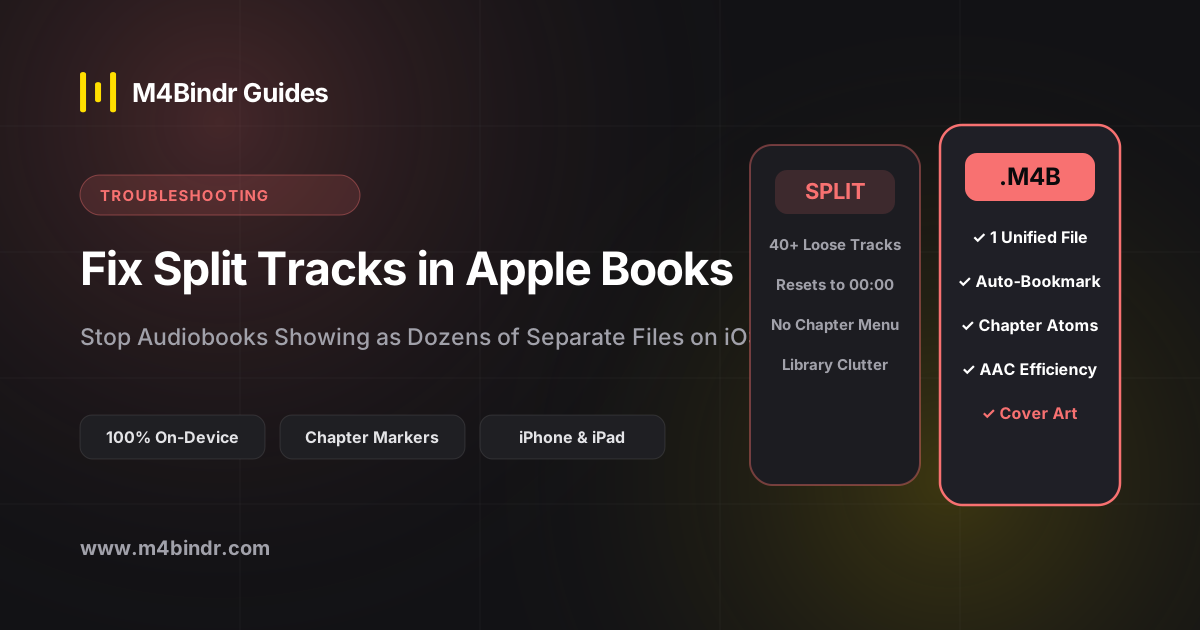
Few things are more annoying than importing a new audiobook into Apple Books, opening your library, and discovering that a single novel has exploded into 35 separate books—or worse, that Chapter 10 plays right after Chapter 1 because of alphabetical sorting.
Fortunately, your audio files aren't broken. Apple Books simply relies on strict container rules and metadata tags that loose MP3 or multi-part audio files rarely share. Here is why it happens and how you can permanently fix split audiobooks directly on your iPhone.
Why Apple Books Breaks Up Multi-File Audiobooks
When you purchase an audiobook directly from Apple, it arrives as a single, unified .m4b container. However, when you import DRM-free audiobooks from outside sources, they typically come as a folder of individual MP3 or M4A files. Apple Books splits them up for three common reasons:
- Inconsistent Album & Author Tags: If even one track has a slightly different Album, Album Artist, or Author tag, Apple Books treats it as an entirely separate book.
- Missing Track & Disc Numbers: Without embedded ID3 track numbers, players sort files alphabetically (so Chapter 10 comes before Chapter 2).
- Direct iOS Share-Sheet Imports: Sharing multiple loose MP3 files directly on iOS treats each file as an independent audio item rather than chapters of a single volume.
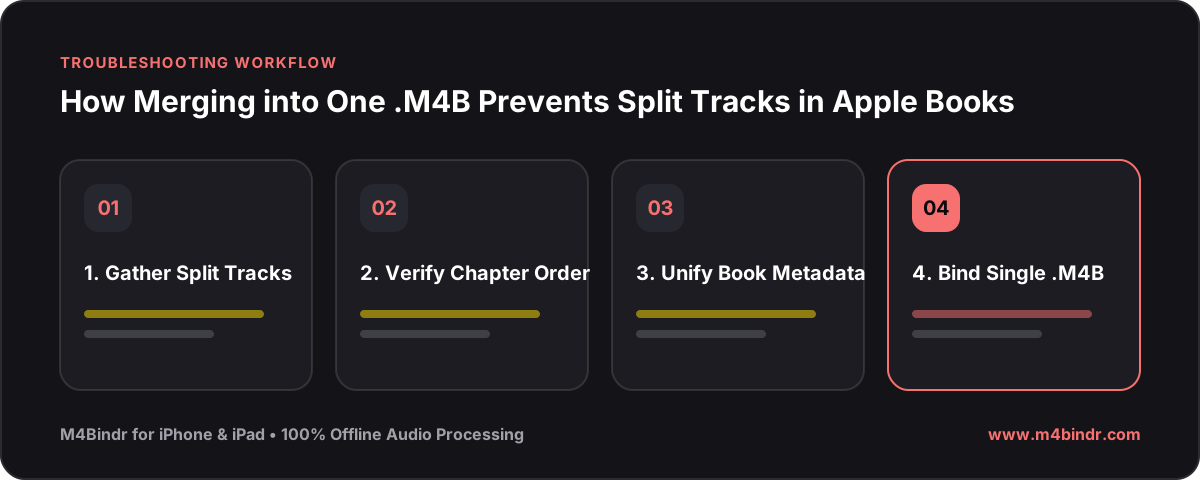
The Permanent Fix: Bind Separate Tracks into a Single M4B Container
Instead of fighting ID3 tags across 40 separate MP3 files on a computer, the cleanest solution is to merge all those tracks into a single .m4b audiobook file before importing. Because a single M4B container holds all audio and chapter markers inside one file, it is physically impossible for Apple Books to split it apart.
✓How to Merge Split Audiobook Tracks on iPhone
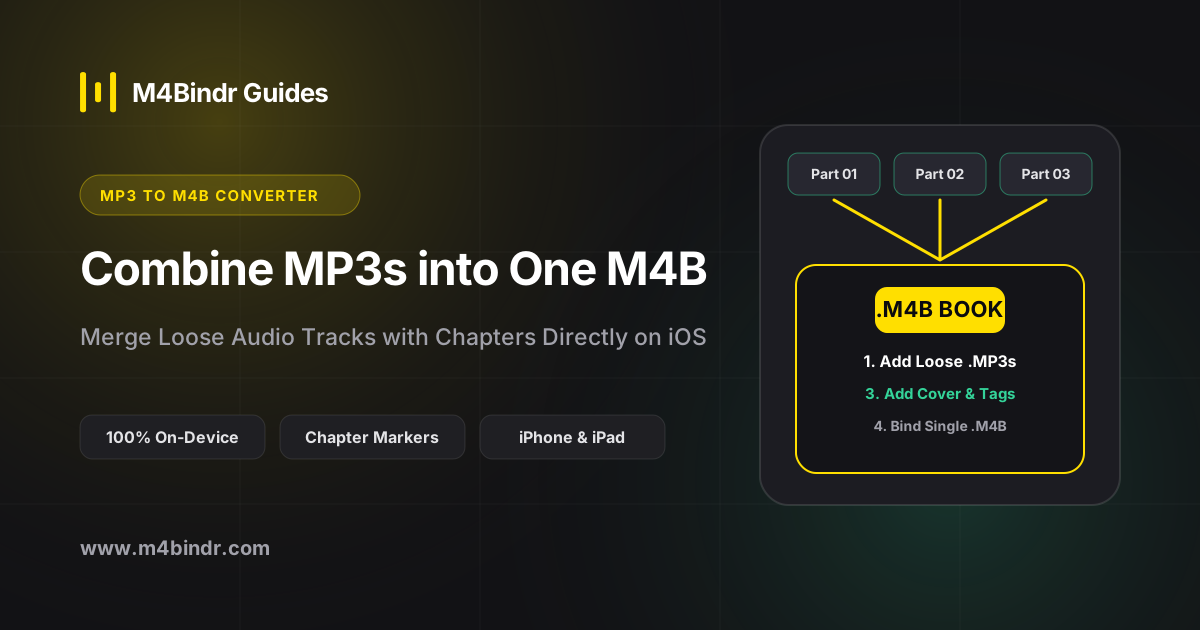
- Open M4Bindr on Your iPhone: Download the M4Bindr audiobook creator and tap Add Audio Files to select all the loose tracks from your Files app.
- Verify Chapter Order: Drag and drop any out-of-order tracks and rename chapters cleanly so your table of contents looks right.
- Add Unified Metadata & Cover Art: Enter the book title, author, narrator, and cover image once—applying it to the entire book.
- Tap Bind: M4Bindr combines every track offline into one single
.m4bfile ready for Apple Books or any iOS audiobook player.
One Book, One Entry, Working Chapters
Once bound into a single M4B file, your audiobook sits neatly as a single cover on your shelf. Every original track is preserved as an internal chapter marker, giving you instant chapter skipping and reliable playback memory without library clutter.