May 2026
How to Turn Apple Voice Memos into a Chapterized Audiobook on iPhone
Recorded bedtime stories for your kids, family history interviews, or personal journals in Apple Voice Memos? Learn how to combine your recordings into a real M4B audiobook with chapters and cover art.
The microphone inside your iPhone is studio-grade compared to recorders from a decade ago, making Apple's built-in Voice Memos app a favorite for parents recording bedtime stories for their children, writers dictating chapters, and families capturing oral histories with grandparents.
Instead of leaving those priceless recordings buried in an endless list called New Recording 47, you can bind them into a genuine, chapterized M4B audiobook complete with a family photo as the cover art.
Creative Ways People Turn Voice Memos into Audiobooks
- Custom Kids' Bedtime Stories: Record yourself reading your child's favorite picture books or made-up adventures so they can listen with chapter navigation during car trips or bedtime.
- Family History & Memoirs: Combine multiple interview sessions with parents or grandparents into a single keepsake audiobook sorted by life chapter, then share the DRM-free M4B with relatives.
- Author Drafts & Audio Journals: Listen back to your own dictated book chapters or yearly audio logs as a single volume.
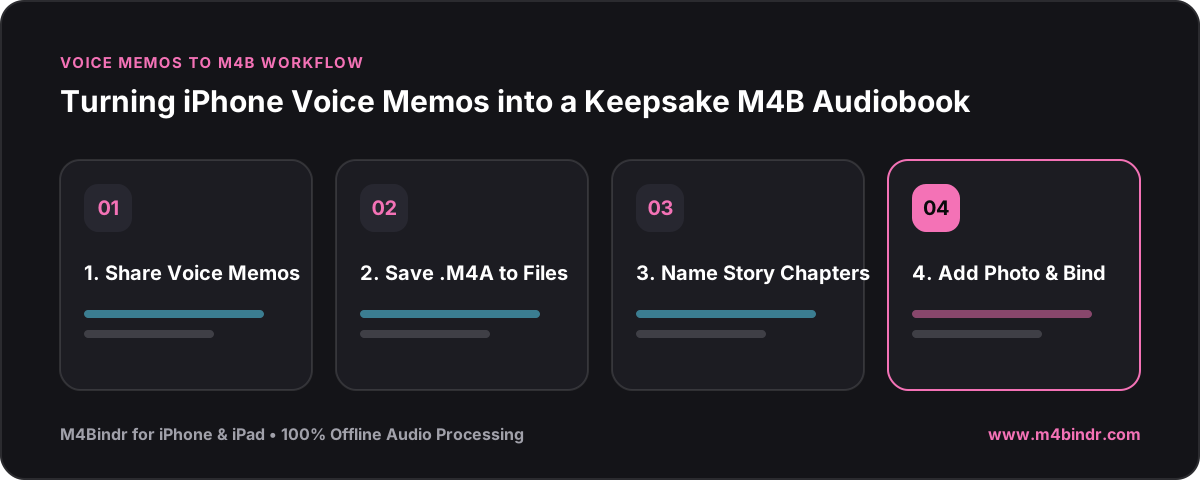
How to Export Voice Memos and Bind Them into an M4B File
✓4 Simple Steps on iPhone
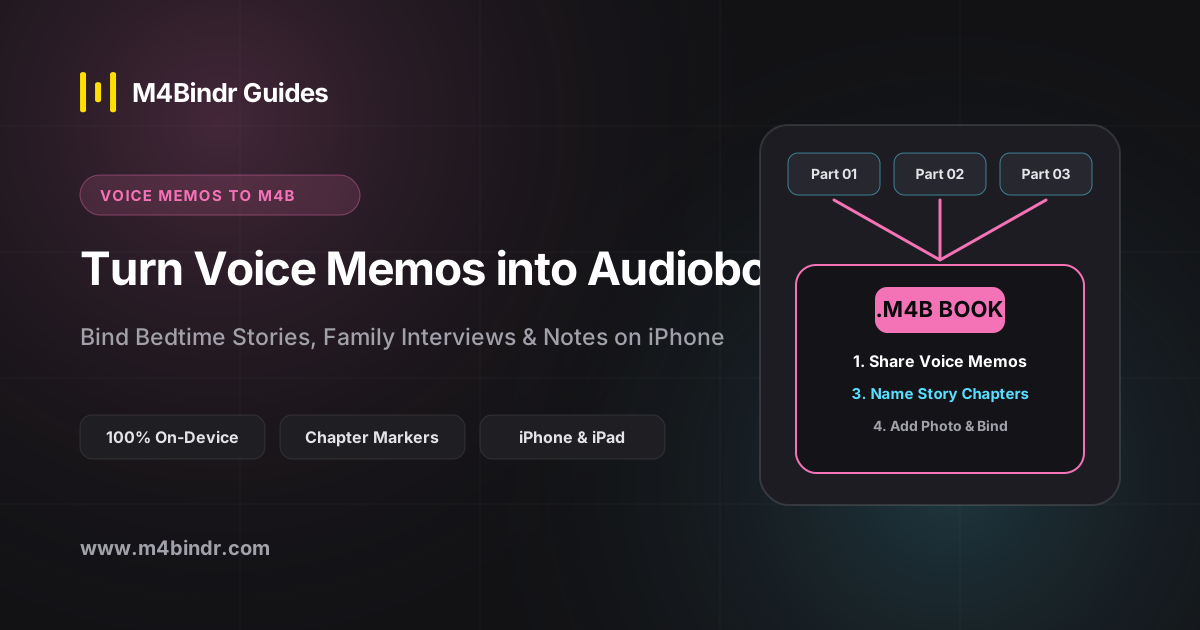
- Save Recordings to Files: In the Apple Voice Memos app, tap Edit, select your recordings, tap the Share icon, and choose Save to Files. (Voice Memos exports high-quality
.m4aaudio). - Import into M4Bindr: Open M4Bindr and tap Add Audio Files to select your saved Voice Memos.
- Name Each Chapter & Pick a Photo Cover: Rename each recording into a friendly chapter title and choose any photo from your Camera Roll as the audiobook cover art.
- Tap Bind: M4Bindr merges your voice recordings offline into a single
.m4baudiobook that plays in Apple Books or any audiobook app!